This article will help describe the steps of how to assign Door Access to existing Users and Guests within your RemoteLock Account. This step is usually performed if a Guest or User requires additional Access to different devices on the account with their PIN.
This step should also be performed for Guests or Users that were removed from a device, but need to be added to a replacement device.
In this article:
Adding Access with the Add Door Access Feature
This “Add Door Access” feature can be found in the User or Guest Profile on your RemoteLock Web Portal.
-
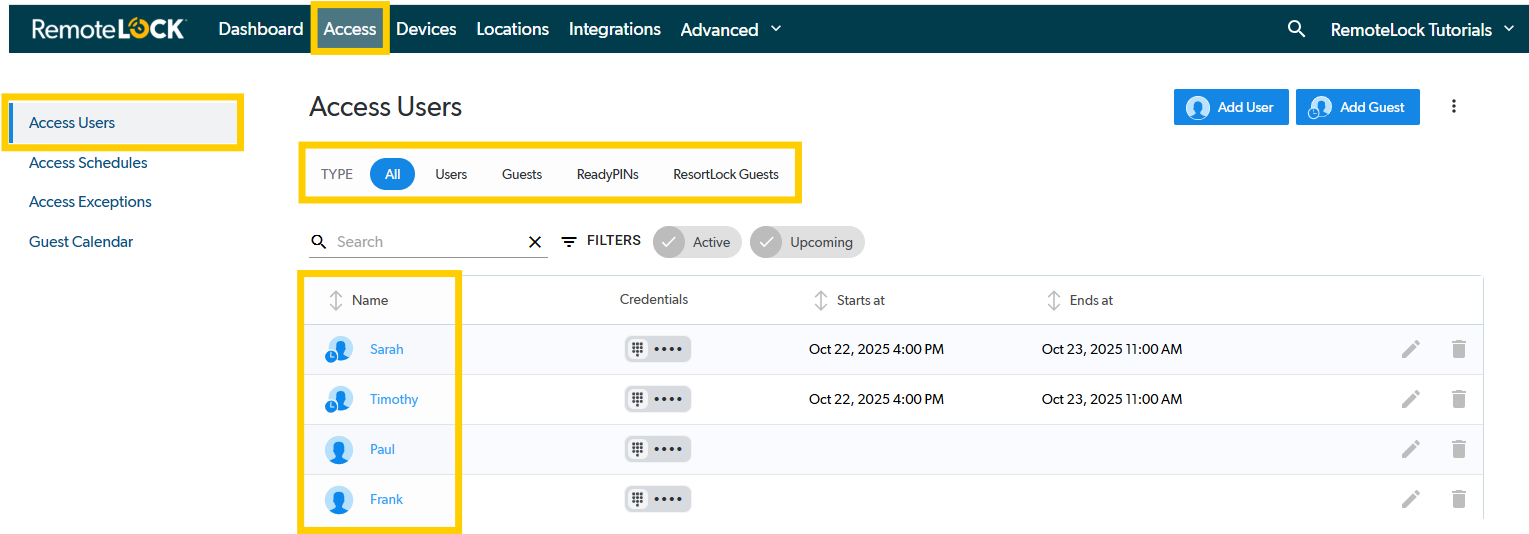
To add additional door access or access to an entire location, select the desired Guest or User from the Access Tab.
-
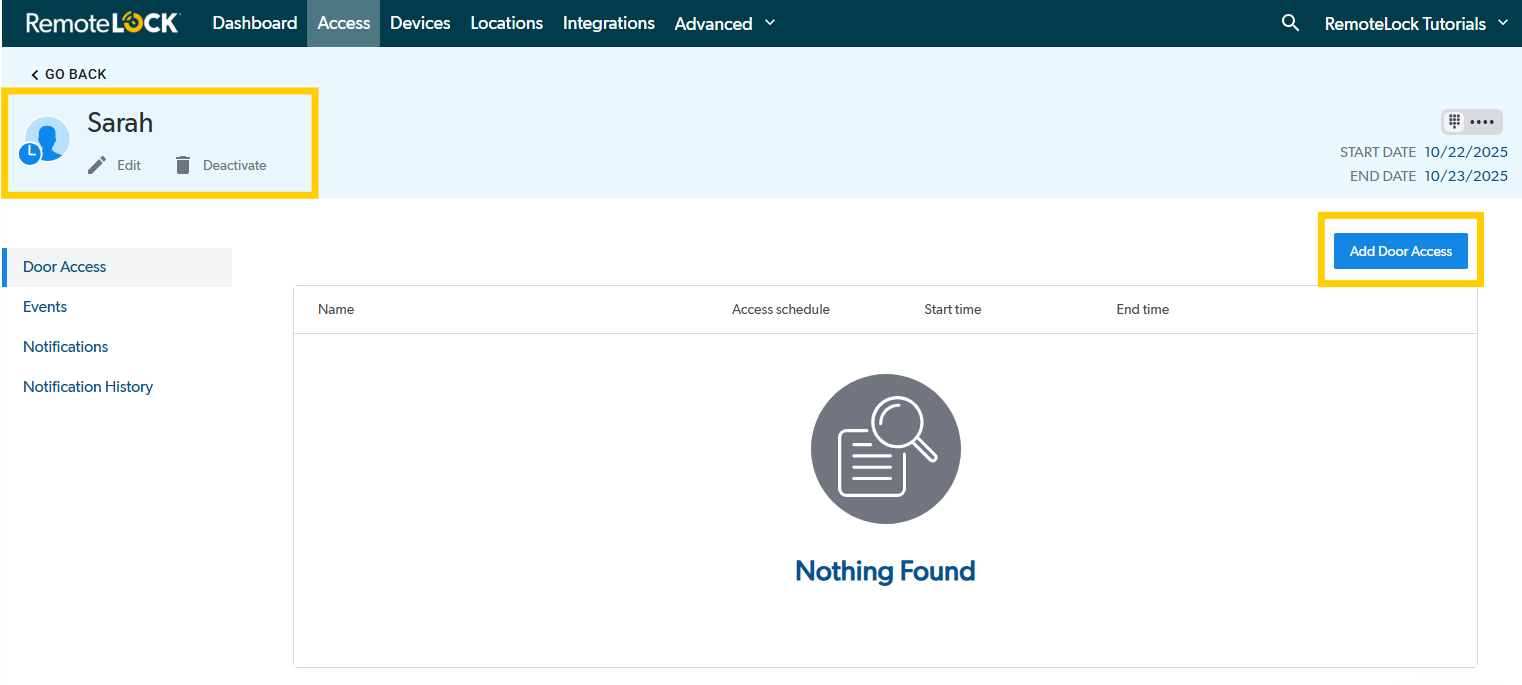
Once on the user or guest's view page, select Add Door Access.
-
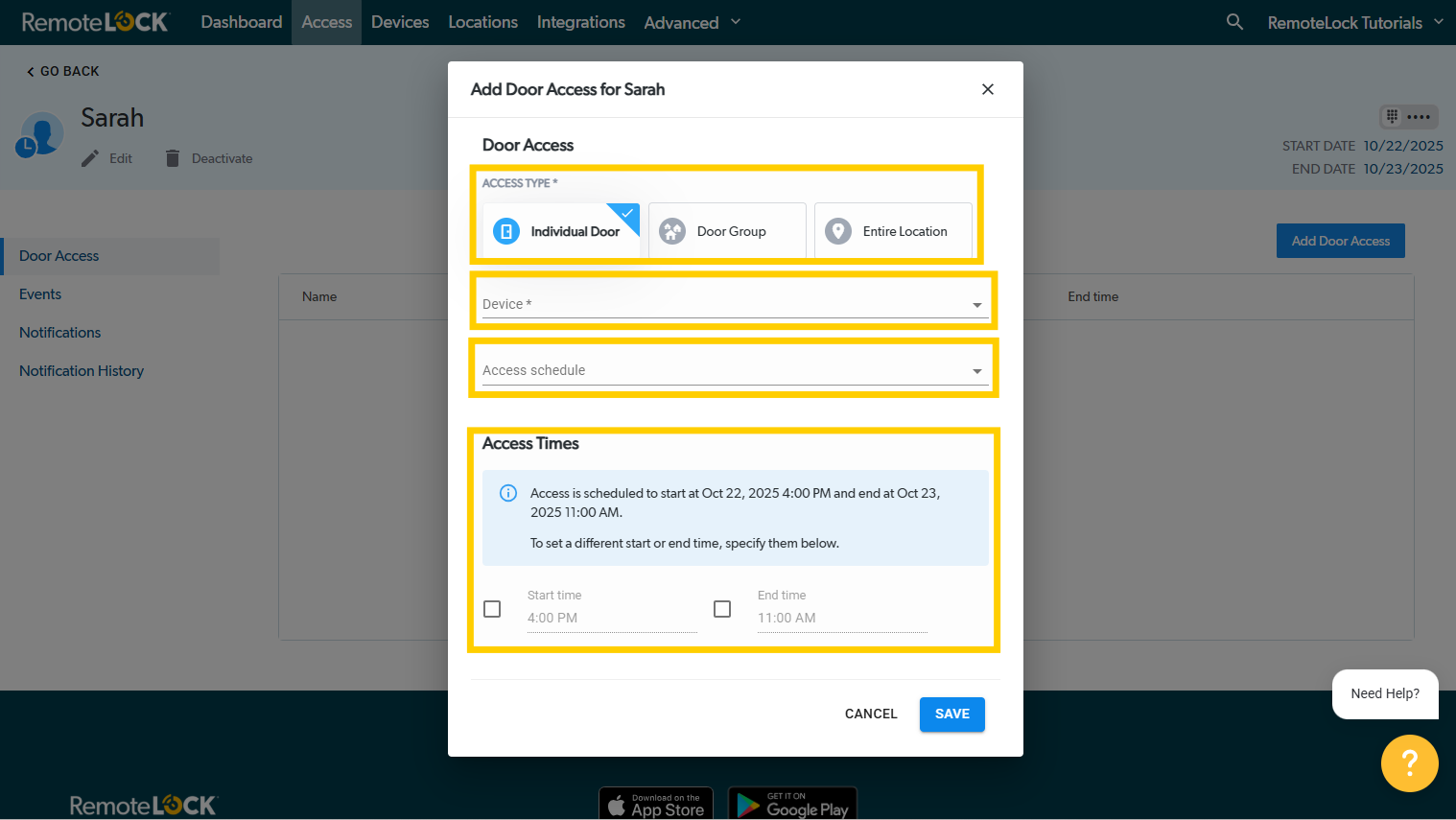
Next, you'll specify if the door access will be for the Entire Location, a Door Group, or an Individual Door (Note: These options may be limited depending on the subscription plan you have selected). For Access Guests, if you would like to set a different start or end time associated with this door, either of the boxes you would like to update and edit the time. You can also assign a pre-created Access Schedule at this time. Finally, click Save.
-
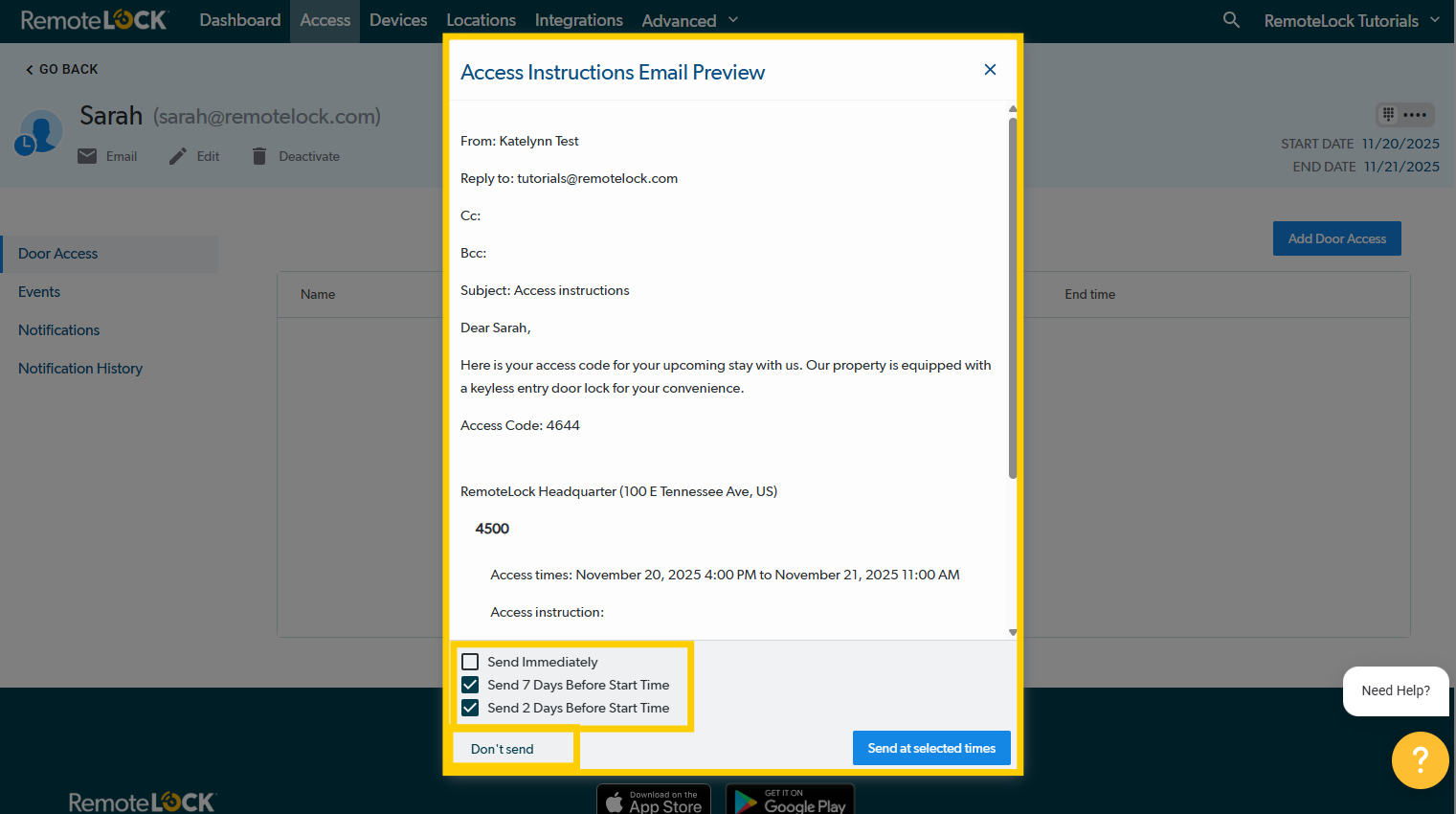
After creating the new door or location access, you should see a ""Door Access Saved Successfully"" notification at the bottom of the page. You'll also have the option to send the Access Instructions Email associated with this lock to the user. You'll be able to specify if you want to ""Send at Selected Times"", or ""Don't Send"" the email. If you choose to ""Send at Selected Times"", it will send the email at the time(s) you have designated by checking the boxes next to each time.
-
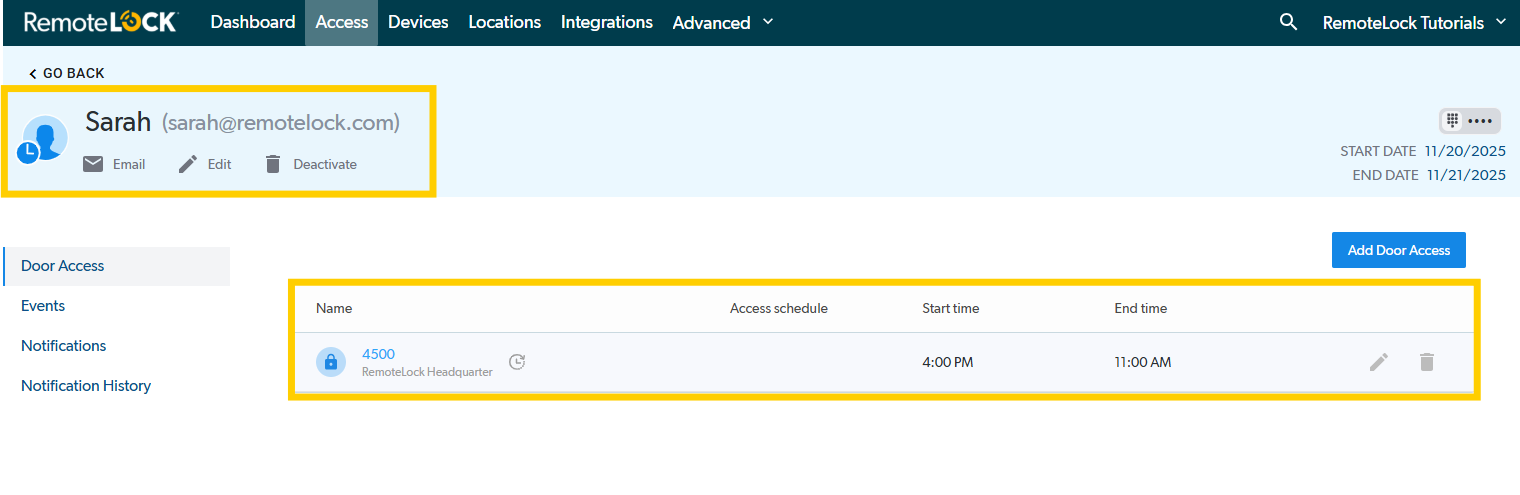
After specifying the email notification you would like to send, you should see the new door or location included on the guest or users page view.
Removing Door Access
In order to remove door access, but retain the user/guest profile you will want to do the following:
- Search for the user/guest using the Access tab
- Select the user/guest you would like to remove door access from
- Select the 'Delete' (trash can icon) in order to remove the door access from the user/guest
- Confirm deletion on the pop up